Wednesday, December 22, 2021

How to Update DoIP Xentry Connect C5 Software (with Free Update Files)


Here’s the detail guide on how to update software of Mercedes Benz DoIP Xentry Connect C5 MB Star diagnostic scanner.  DoIP C5 comes with both internal hard drive and external Dell HDD .

Note:

1.The upgrade procedure fits for DoIP Xentry Connect C5 but no SD Connect C5 (SD C4 in C5 case).

2.

If you have XDOS 2018.3 or  2017.9 not working well, you should update it to version 2018.7.

If you have XDOS 2018.5 works good, it’s not necessary to update to 2018.7.

3. If you feel complicated to update the firmware by yourself.  You can send both Doip C5 HDD and Dell HDD to us to run an upgrade.

Part 1: How to remove Xentry Connect C5 internal HDD

Here’s a video explaining in detail

Part 2: How to update Xentry Connect C5 software

Tools required:

Xentry_Kit_09_2017.iso(copy to the folder:  iodd 2541 _ISO)

U disk with a Windows machine (recommend Bigbaicai WinCE)

IODD 2541 External Encrypted Hard Drive or similar
How to Update DoIP Xentry Connect C5 Software (with Free Update Files)-1 (2)
Panasonic power adapter

How to Update DoIP Xentry Connect C5 Software (with Free Update Files)2 (2)

Xentry Connect C5 multiplexer

How to Update DoIP Xentry Connect C5 Software (with Free Update Files)-3 (2)

C5 mux in standby mode

connect the Panasonic power adapter to C5

insert IODD 2541 into the USB port on C5
How to Update DoIP Xentry Connect C5 Software (with Free Update Files)-4 (2) How to Update DoIP Xentry Connect C5 Software (with Free Update Files)-5 (2)

in a standby mode, press “X” and “√” at the same time, then it will pop up “Start Update?”

(if not, it will pop up “Start XENTRY Connect?”. then, when the prompt disappears, it will display “Start Update?”)

How to Update DoIP Xentry Connect C5 Software (with Free Update Files)-6 (2)

When you see “Start Update?”, press “√” and Connect C5 will go into the update mode and IODD 2541 will light up

How to Update DoIP Xentry Connect C5 Software (with Free Update Files)-7 (2)

Press button “5” on IODD 2541 as soon as possible. then, the cross “X” will turn a circle “O”

How to Update DoIP Xentry Connect C5 Software (with Free Update Files)-8 (2)

what’s displayed on C5:
How to Update DoIP Xentry Connect C5 Software (with Free Update Files)-9 (2) How to Update DoIP Xentry Connect C5 Software (with Free Update Files)-10 (2) How to Update DoIP Xentry Connect C5 Software (with Free Update Files)-11 (2)

It will take 50-55 minutes to finish the upgrade

The system restarts after installation completes

How to Update DoIP Xentry Connect C5 Software (with Free Update Files)-12 (2)

If your system fail to start, turn off C5 mux and restart again

When C5 starts, take out the hard disk on C5 and install it into the laptop (here: Dell 55220)

Before it, pls install the Windows machine on the U disk

How to Update DoIP Xentry Connect C5 Software (with Free Update Files)-13 (2)

Press F12 when you see the pop-up “F12 Boot Options”

How to Update DoIP Xentry Connect C5 Software (with Free Update Files)-14 (2)

Select USB Storage Device and press “Enter”

How to Update DoIP Xentry Connect C5 Software (with Free Update Files)-15 (2)

Pop up the interface, and select [03] WIN2003 PE Classical

How to Update DoIP Xentry Connect C5 Software (with Free Update Files)-16 (2)

Go to the PE system and create an user account

How to Update DoIP Xentry Connect C5 Software (with Free Update Files)-17 (2) How to Update DoIP Xentry Connect C5 Software (with Free Update Files)-18 (2) How to Update DoIP Xentry Connect C5 Software (with Free Update Files)-19 (2) How to Update DoIP Xentry Connect C5 Software (with Free Update Files)-20 (2)

Note that Windows should be located in disk D:

How to Update DoIP Xentry Connect C5 Software (with Free Update Files)-21 (2)

After path selection, right click on “Create a new admin account” on the left

How to Update DoIP Xentry Connect C5 Software (with Free Update Files)-22 (2)

User name: C5, Password: abc12345678
(You can have any user name and password you want)

How to Update DoIP Xentry Connect C5 Software (with Free Update Files)-23 (2) How to Update DoIP Xentry Connect C5 Software (with Free Update Files)-24 (2)

Click on Ok

Close the application

Turn off the laptop

Take out the disk off the laptop and install it into C5 multiplexer

How to Update DoIP Xentry Connect C5 Software (with Free Update Files)-25 (2)

Done!

Part 3: How to activate Xentry Connect C5 after upgrade

Here’s teamviewer file explaining the step-by-step activation procedure

https://mega.nz/#!Gp8lzLLK!-B3Ytw1j-YoC9tWM_atYxgvmer5mbOMNxfH4BYz4D0E

Files needed to activate C5:

Activation key

2018.7 key

Black list C5

Part 4: How to install EPC WIS software

Video 1

Video 2

Part 5: How to connect C5 SD connect  with Xentry Tab/Laptop

Here’s example on connecting C5 with Xentry tablet, can be also connected with Dell D630 or Lenovo laptop.

C5 is Standby status when not connect with car

How to Update DoIP Xentry Connect C5 Software (with Free Update Files)-26 (2) How to Update DoIP Xentry Connect C5 Software (with Free Update Files)-27 (2)

C5 has 2 USB connectors and round power connector (power by Panasonic power adapter) on left side

How to Update DoIP Xentry Connect C5 Software (with Free Update Files)-28 (2)
How to Update DoIP Xentry Connect C5 Software (with Free Update Files)-29 (2)
Connect LAN cable and power cable with C5

How to Update DoIP Xentry Connect C5 Software (with Free Update Files)-30 (2)

Press Power button foe 3 sec to turn on Tab

How to Update DoIP Xentry Connect C5 Software (with Free Update Files)-31 (2)

Connect Xentry C5 OBD cable and LAN cable

How to Update DoIP Xentry Connect C5 Software (with Free Update Files)-32 (2)
No car connected. Because it is not connected to vehicle

How to Update DoIP Xentry Connect C5 Software (with Free Update Files)-33 (2)
How to Update DoIP Xentry Connect C5 Software (with Free Update Files)-34 (2)
Xentry Tab main menu
How to Update DoIP Xentry Connect C5 Software (with Free Update Files)-35 (2)

Open Xentry Control
How to Update DoIP Xentry Connect C5 Software (with Free Update Files)-36 (2)

Then come to this interface, wait for the communication
How to Update DoIP Xentry Connect C5 Software (with Free Update Files)-37 (2)

Xentry is connected with SD C5
How to Update DoIP Xentry Connect C5 Software (with Free Update Files)-38 (2)

Click on green icon
How to Update DoIP Xentry Connect C5 Software (with Free Update Files)-39 (2)

Launch Xentry software
How to Update DoIP Xentry Connect C5 Software (with Free Update Files)-40 (2)

Run MB Star diagnostic software and start diagnose Mercedes.

Tuesday, December 21, 2021

Why should you buy SD connect C4/C5 with laptop?


V2021.09 DOIP MB SD Connect C4 Star Diagnosis Plus Panasonic CF19 I5 4GB Laptop with Vediamo DTS Engineering Software

2021.09 DOIP MB SD Connect C5 Star Diagnosis Plus Panasonic CF19 I5 4GB Laptop with Vediamo DTS Engineering Software

All software pre-installed
Ready for use

Here list reasons:
–Mercedes Benz Star diagnosis C4/C5 actually with out a laptop specifies the computer or tablet used in the SDS environment, encountering setting problem when using the star diagnosis tool, which is rather slow. But the C4/C5 Star Diagnosis software with Panasonic CF19 I5 4GB Laptop has been installed on , I can use it directly. this package offer saves you money than buying them alone.

–Bought MB SD Star C4/C5 directly installed in Panasonic CF19 I5 4GB Laptop. No Machine issues.

–The speed improvement is like night and day especially when using Xentry 2021.09

–The HDD/SSD that is pre-loaded with the software for SD Connect 4/C5 by the Seller, is inserted into the Panasonic CF19 I5 4GB Laptop… The Panasonic CF19 I5 4GB Laptop is the fastest laptop with the feature.

–The software Xentry/ DAS is fast on the Panasonic CF19 I5 4GB Laptop. So that it is worth paying a bit extra and getting them.

–I can directly use the Plus Panasonic CF19 I5 4GB Laptop With Vediamo DTS Engineering Software, it is very inconvenience.

–Plug and play! It is more convenient for users because the software for C4/C5 diagnostic tool will be pre-installed before delivery.

MB SD Connect C4 Star Advantages:
MB Star Compact-4, as a new-born and updated tool of C3, it also own its comparative advantages
is much different in the shape from Compact3
–Smaller in size, lighter in weight than Compact3
–C4 can do all the works what Compact3 does and it is the replacement of Compact3-Star
–Covers a wide range of vehicles including trucks and some cars that C3 and old C4 do not support
–Supports wireless diagnose
–Adopt Military quick swap technology, and supports 10,000 times pull plug, more stable

MB SD Connect C5 Star Doip Advantages:
–Efficient diagnostic program and complete vehicle database
–Advanced upgraded VCI+ communication interface
–The wireless connection is stable
–Including Super Engineer Software: DTS monaco V8.16.015 And Vediamo V5.01.01 Support Offline Programming
–New Xentry software released by Bennz Company after 04/2009 by diagnosis new cars

Monday, December 20, 2021

Free download MB SD C4 Blacklist File for SN 101044


Problem:

I have an issue with MB SD Connect C4 multiplexer (the old c4 i bought several years ago) with 03/2021 xentry.

It can access a C205. But failed to log in a C206 C220 d mod.206.016 year 2019 and a GLC254 300 4MATIC mod.254.147 year 2019.

Possible reason and solution:

1.MB SD C4 Serial number 101044 was blacklisted. It has problem using latest xentry.

2. SDConnect C4 firmware too old to support newer Mercedes benz. Borrow or purchase a newer MB SD C4 DoIP or MB SD C5 device.

3. Some blacklists can be bypassed by software. Download the C4 blacklist patch, unlock serial number and try again. If don’t know how to unlock, contact our engineer via Teamviewer (your order number and device serial number are required to get the technical support.)

Free download C4 Blacklist Patch for S/N 101044

For serial number 101044 only.

Sunday, December 19, 2021

How to Update & Re-flash MB SD C5C4Plus Firmware


Here we share the procedure to update and re-flash MB SD C5 DOIP/C4Plus, in case if something about firmware goes wrong you may need it.

1.Procedure to update firmware:

Notice: MB SD C5 needs six AA batteries while DOIP MB SD C4 Plus doesn’t.

Connect the device to OBD port or 12V power by main cable.

Path 1. C:\Program Files\Mercedes-Benz\SDConnect Toolkit

Path 2. C:\Program Files\Softing\Diagnostic Tool Set 8\8.03\Interfaces\DCDI_DPduApi\eCOM_Toolkit

In both folder, switch “update_automaticx”“update_manualx”“update_specicalx” into “update_automatic”“update_manual”“update_specical” (delete “x”).


Reboot your computer as required.

Right-click “SDconnect Toolkit” and select “Administration”.

Select the device when it’s identified.

Go to “Software update”.

Download “00_ClearCeFlashDisk_zip”“02_CSD_2_11.zip”“01_Bootimage_2_3.zip”“03_PmPic29_Cpld13.zip” successively.

Update & Re-flash MB SD C5/C4Plus Firmware

2. Procedure to re-flash firmware(without battery):

Notice: Make sure to turn off PC’s firewall before operation.

Right-click “SDconnect Toolkit” and select “Goto BIN directory”

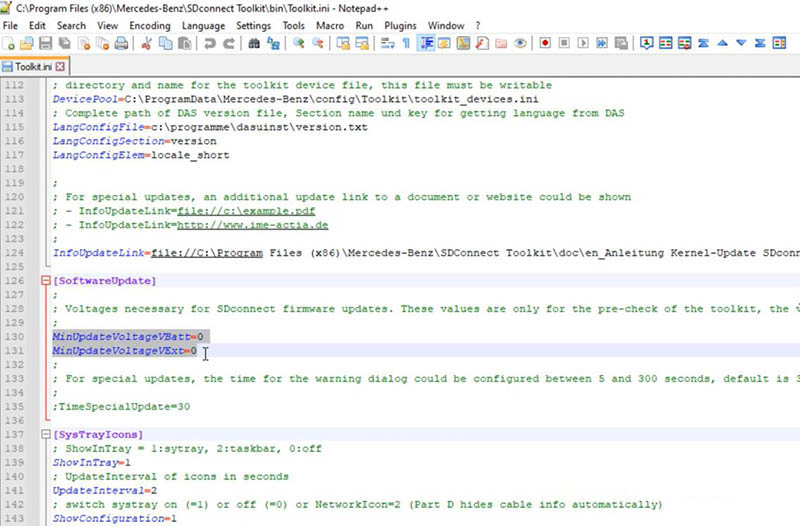
Open “Toolkit.ini” by editing tool.

Find “MinUpdateVoltageVBatt=7200” and “MinUpdateVoltageVExt=11000”.

Switch two values into “0”.

Reboot your computer as required.

Right-click “SDconnect Toolkit” and select “Administration”.

Select the device when it’s identified.

Go to “Software update”.

Download “02_CSD_2_11.zip”“01_Bootimage_2_3.zip”“03_PmPic29_Cpld13.zip” successively.

Device’s indicator will flash during downloading.

Update & Re-flash MB SD C5/C4Plus Firmware

Wednesday, December 1, 2021

MB SD C4 C5 Diagnostic Tools Hardware Upgrade Instructions


MB Star Diagnostic Tools have two versions like 2020.03 MB SD C4 and V2021.6 MB SD C5 now for their Hardware Upgrade Instructions.

MB SD Connect Compact 5 diagnostic tool has same function as SD C4 but with new design, support both cars and trucks, support wireless connection.
mb-sd-c4-c5-diagnostic-tools-hardware-upgrade-instructions-1

While 2020.03 MB SD C4 diagnostic tool is still great Connect Compact 4 For Mercedes Benz Diagnosis WIFI Version, both compatible on WIN7 and WIN10.

mb-sd-c4-c5-diagnostic-tools-hardware-upgrade-instructions-2

For their hardware upgrade, there are two paths available:

(1)Path one:C:\Program Files\Mercedes-Benz\SDConnect Toolkit

(2)Path two:C:\Program Files\Softing\Diagnostic Tool Set 8\8.03\Interfaces\DCDI_DPduApi\eCOM_Toolkit

Change the three file names of update_automaticx, update_manualx, and update_specicalx under path one and path two to update_automatic, update_manual, and update_specical (remove the letter x at the end of the file name). After the modification, see Figures 3 and 4 below.
After changing the file name, the computer restarts
C4 and C5 need to install 6 AA batteries (see steps 1 pdf for details) [sp100-e doip hardware upgrades do not need to install batteries]
Obd main line should be connected to car or 12v power supply

mb-sd-c4-c5-diagnostic-tools-hardware-upgrade-instructions-3
mb-sd-c4-c5-diagnostic-tools-hardware-upgrade-instructions-5 mb-sd-c4-c5-diagnostic-tools-hardware-upgrade-instructions-6

 Right-click on the lower right corner of the computer to select administration, and then select Software update

mb-sd-c4-c5-diagnostic-tools-hardware-upgrade-instructions-7

Mainly upgrade three files, as shown in the figure below, the upgrade sequence is 00——>02——》01——》03

mb-sd-c4-c5-diagnostic-tools-hardware-upgrade-instructions-8

As long as you follow the above upgrade instructions accordingly step by step, no problem would occur for your tool’s hardware. Wait for big success!

That’s all. Thank you for sharing your time with us!
Focus On OBD Tool Since 2008

Wechat/WhatsApp:(+86)15815514521

Email:service@autonumen.com

Or leave a message at https://www.autonumen.com/ to tell us what suggestions or questions you have about our products.